Managing Documents
Create, edit and organize documents
In DocNado, you manage all your documents in one central place. A document can be an invoice, a contract, a receipt, a bank statement, or any other type of record — you choose the type when creating it. For each document, you enter a title, location, date, and optionally a due date that appears in the calendar. You can add any number of line items to each document — for example, individual entries on a receipt. Optionally, you can specify a tip and choose how it is distributed among participants. The document status (Open, Paid, Archived) gives you a constant overview of which records still need your attention and which are already taken care of. You can categorize your documents with tags, share them via QR code, and export them whenever needed.
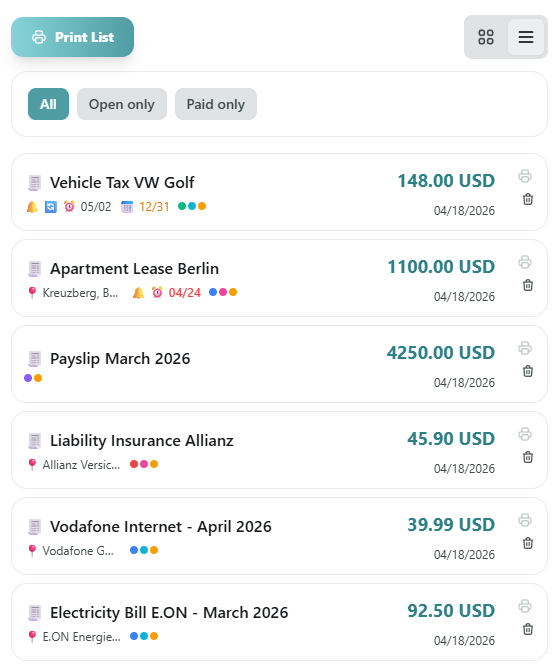
Document list view with filters and status indicators
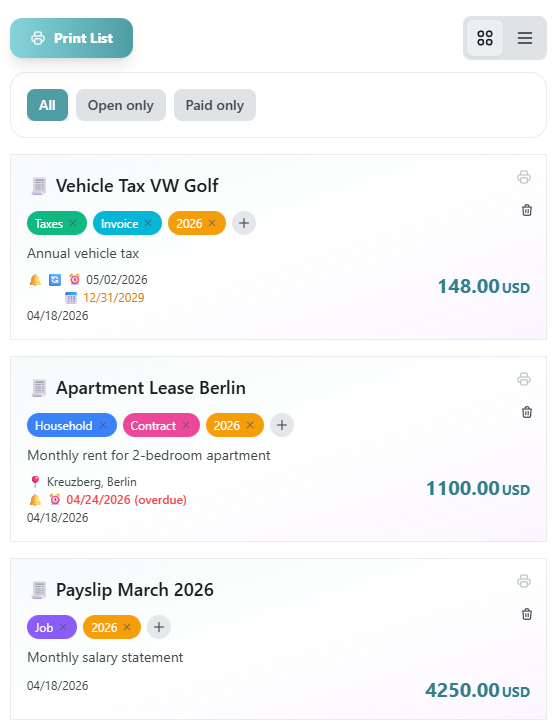
Documents in grid view — compact with tags and preview
Supported Document Types
Create New Document
4. Save
- •"+ New Document": click in the dashboard
- •Title: e.g. "Car repair Miller"
- •Location: Optional, e.g. company name
- •Date: When was the invoice issued?
- •Due Date: When does it need to be paid?
- •Currency: EUR or USD
- •Tip: Optional — enter an amount or choose a custom amount
Line Items
Tip / Gratuity
When creating or editing a bill, you can optionally specify a tip. You have two options:
- •Proportional: The tip is distributed **proportionally** among all participants — those who ordered more also pay more tip. Example: 10% tip → everyone pays 10% more on their share.
- •Fixed: The bill owner covers a **fixed share** of the tip themselves. The remainder is split among the other participants. Ideal when you as the host want to cover part of the tip.
Tip for Guests
When guests join via the QR code and claim items, they can decide for themselves whether to include the tip in their share. They have three options:
- •Proportional to order: The tip is automatically calculated based on the selected items.
- •Custom amount: The guest enters a tip amount of their choice (up to the total tip on the bill).
- •No thanks: The guest does not include any tip in their share.
Change Status
- •Open: → Not yet done
- •Done: → Completed (paid or task fulfilled)
- •Archived: → No longer active