
"Trust us, everything is encrypted" — that is what almost every cloud service promises. But why believe it? If a provider promises zero-knowledge encryption, you as a user can still verify one crucial part of that claim without an audit and without source-code access: by looking at what actually leaves your device. The browser ships with a ready-made tool for this — the developer tools. Don't worry, you don't need to be a developer; we'll walk through every step.
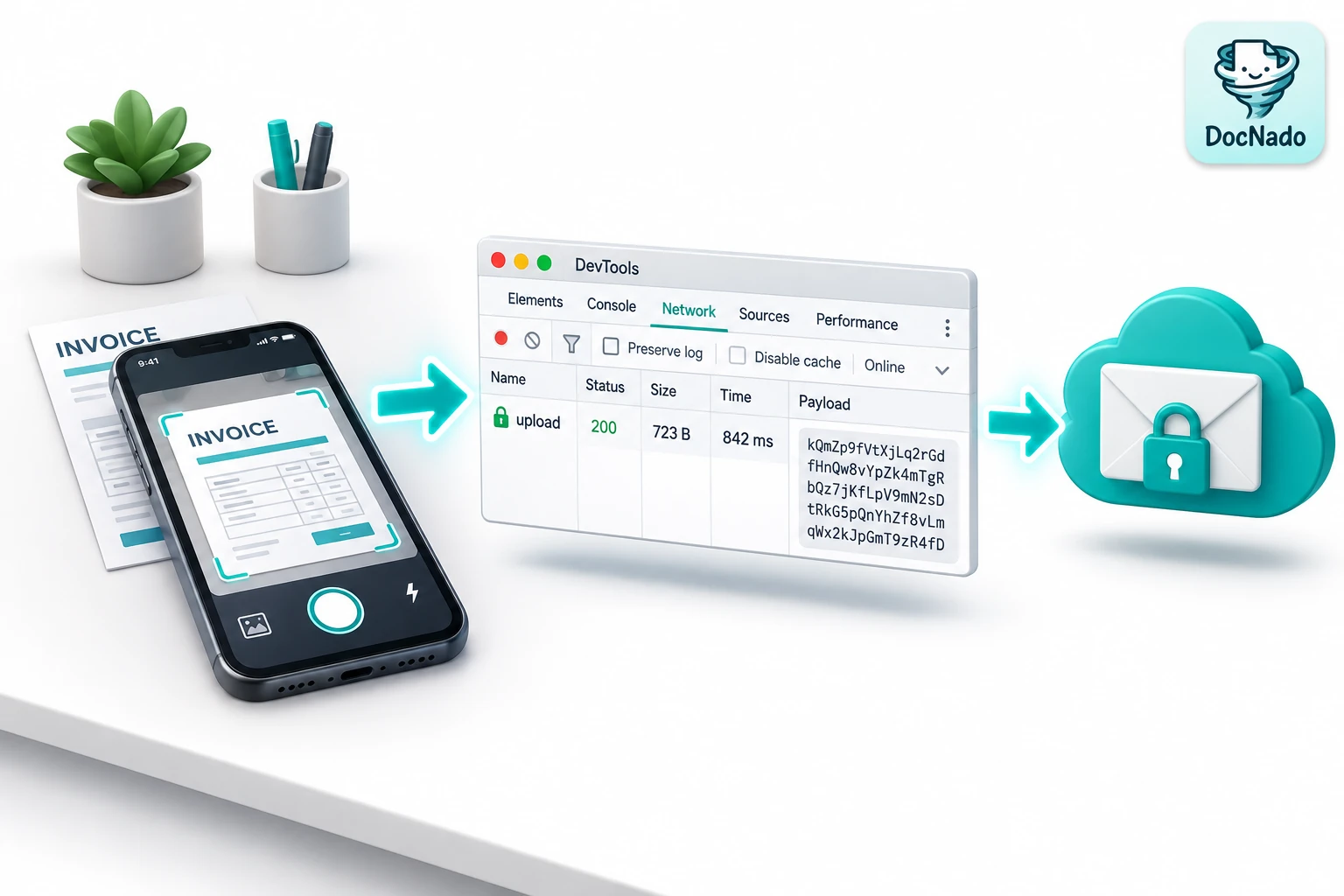
The core idea: what the network tab shows is the truth
The developer tools show every network request your browser session makes — unfiltered and independent of what any provider claims on their website. If an upload is "encrypted", then the request visible in the network tab must not contain a readable document. If plaintext shows up there anyway, the promise was empty.
This is not a full audit — that would require someone to review the entire codebase. But it is the most direct answer to the most important question: does my document leave this device in plaintext or not?
Step 1: Enable "without AI analysis" and open DevTools
- Scan a document in DocNado and enable "without AI analysis" when saving — text recognition then runs entirely locally in your browser.
- Open the developer tools: F12 (Windows/Linux) or Cmd+Option+I (Mac). On a smartphone this doesn't work directly — the self-test is a desktop exercise, but the finding applies to every device, because the same code runs there.
- Switch to the "Network" tab.
- Make sure recording is active (red dot) and clear the request list with the 🚫 icon.
Step 2: Save and find the upload request
Now click "Save encrypted". Several requests appear in the network tab. The interesting one is the upload:
- Look for a POST request to a path like
/api/documentsor/thumb-upload— you can typeuploadinto the filter box. - Click the request and open the "Payload" tab.
Step 3: Reading the payload — what to look for
Now for the actual test. In the payload you look for traces of your document:
| What you see | What it means |
|---|---|
Jumbled Base64 characters (e.g. chunks, metadata, long random strings) |
✅ Exactly right: encrypted blocks. Nothing can be reconstructed from them without your key. |
The readable text of your document, your name, amounts, data:image/jpeg or %PDF |
❌ That would be plaintext — grounds for criticism. |
Only metadata like title, event_date |
⚠️ Uncritical fields that deliberately stay unencrypted (for sorting and search) — the content itself remains ciphertext. |
The comparison is worth it: run the same test once. Note: both variants count towards your page quota — the quota applies to cloud storage in the vault, regardless of AI. with AI analysis (the image then travels readable to the analysis service for a few seconds — that is exactly the explained moment) and once without AI (everything stays ciphertext). The difference is visible.
Step 4: The second look — what happens on your device
Another DevTools tab is worth opening: "Application" → "Local Storage" / "IndexedDB". There you can see that DocNado keeps key material only locally — the encryption key is never uploaded. And if you use the ZIP export for your own backups, you additionally hold your own copy outside any cloud.
Staying honest: what this test can — and cannot — do
So we don't promise what we can't deliver:
- It can: show that the upload in without-AI mode contains only ciphertext and that your key never leaves the device. That is the core of the zero-knowledge promise, verifiable in two minutes.
- It cannot: replace a full code review for backdoors. DocNado is not an open-source app and has (as of November 2026) no external audit. Established zero-knowledge services with audits or disclosed code have a trust lead here — we don't dispute that. For documents of the highest protection level, an audited service or a purely local app can be the right choice.
- PWA principle: DocNado runs as a web app in the browser — the code is freshly loaded on every visit. The advantage: security fixes apply immediately, without an update queue. The downside: you trust that the delivered code matches the promised architecture. That is exactly why the network test above is not a nice-to-have but the fastest way to verify that trust with your own eyes.
Conclusion
Trust is good — verifiable is better. Two minutes in the network tab show you that DocNado in without-AI mode keeps what others only promise: your document leaves the device exclusively in encrypted form, your key stays with you, and if you want to be extra safe, the ZIP export gives you your own copy at all times. Once you have seen it yourself, you know where you stand — regardless of what any provider (including us) writes on their website.
Ready to try it yourself? Scan your first document with the developer tools open: docnado.app