
You scan a stack of invoices, save everything as PDF — and three months later you're looking for the insurance policy from March and can't find it. Why? Because your PDF contains no text, only a picture of text. Your computer's search function can't read what's in an image. It can only find text that is stored as text.
The solution is called a searchable PDF — and the difference is bigger than most people think.
What Is a Searchable PDF?
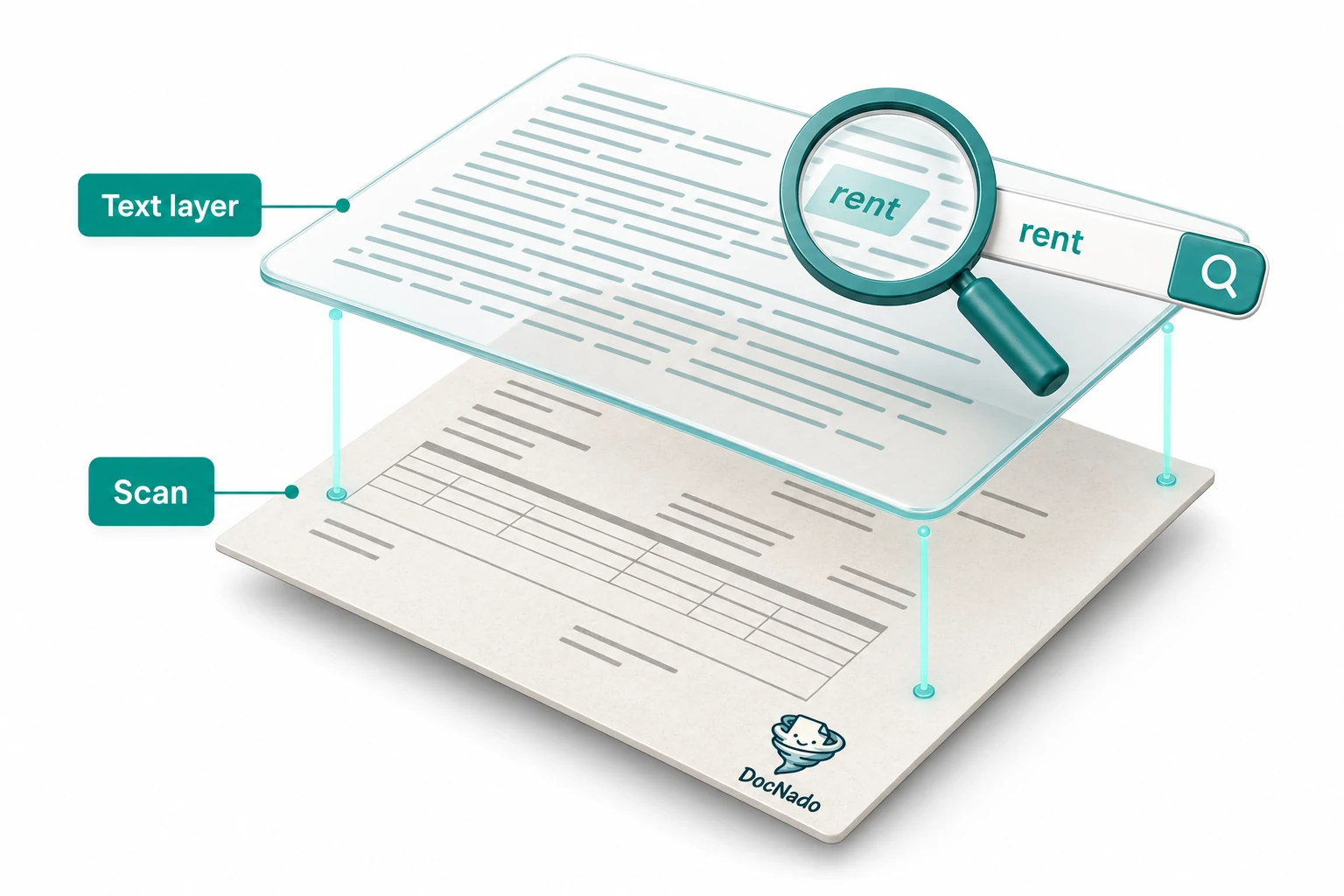
A searchable PDF consists of two layers:
- The image layer: the scanned receipt, exactly as it looked — stamps, signatures, coffee stains.
- The text layer: an invisible layer of real, machine-readable text that sits pixel-perfect on top of the image.
You see the image. Your computer reads the text. Suddenly everything works that a plain image can't do:
- Searching: Ctrl+F, "car insurance", hit. Even across hundreds of files.
- Copying: mark an IBAN, invoice number or contact and reuse it — instead of retyping.
- File system search: your operating system indexes the content, not just the file name.
- Accessibility: screen readers can read the content aloud.
In short: a "photo of a document" becomes a document again.
Why Not Every Scanned PDF Is Searchable
The reason is technically simple: a scanner only photographs. It doesn't know that the black pixels on white ground are letters. Whether a scan becomes a searchable PDF is decided by the software behind it — and whether it runs text recognition (OCR, Optical Character Recognition).
The everyday cases:
| What you did | Result |
|---|---|
| Photo with the camera app, exported as PDF | image PDF, not searchable |
| Scan on an office multifunction device, default settings | often image PDF — "fast" is the default, not "searchable" |
| Scan with an OCR option (scanner software, scan app, receipt app) | searchable PDF ✓ |
| PDF from Word, browser print, etc. | searchable by nature — no scanning involved |
Many people scan for years and wonder why "the search never finds anything". It's not their search — it's the text layer that was never created.
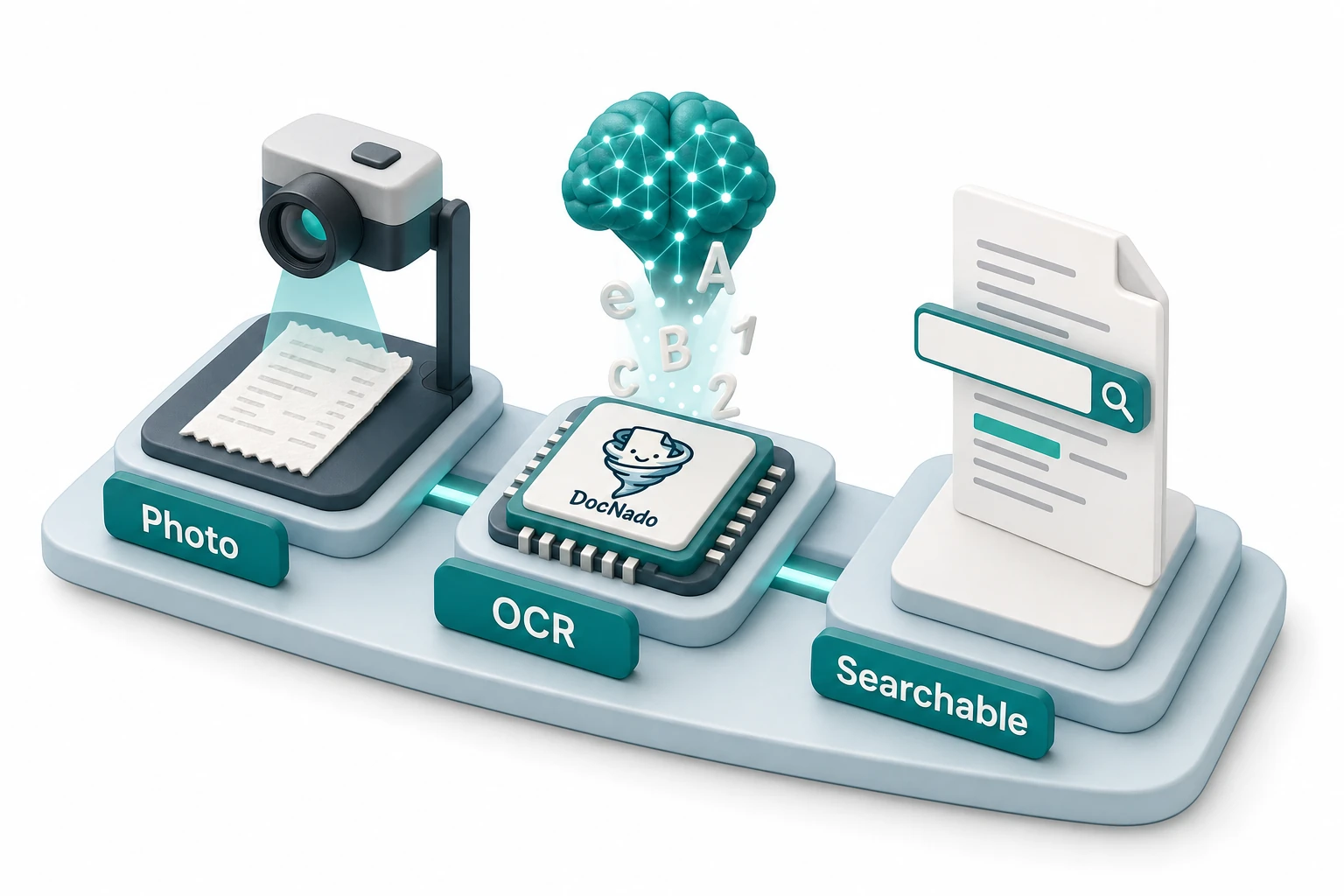
How OCR Works — in Three Steps
So you can judge what recognition can and cannot do, here's the behind-the-scenes process:
- Preprocessing: the image is straightened, contrast optimized, noise reduced. A photographed-at-an-angle document gets perspective-corrected. This step often decides recognition quality more than the actual text recognition.
- Character recognition: classic OCR compares image regions against shape patterns. Modern systems add language models: they "know" that after "insur" likely comes "ance", and correct accordingly. That's why good OCR handles mediocre photos surprisingly well.
- Mapping: every recognized text segment gets its position on the image — the invisible text layer is created, word by word, exactly where it appears in the image.
Honest limits: handwriting remains difficult — OCR wasn't built for it. Heavily soiled, crumpled or partially covered receipts lead to errors. And: OCR is a probability calculation, not truth. For critical documents, always double-check important numbers (invoice amounts, IBANs) against the original — good apps therefore show the image and the recognized data side by side.
Four Ways to a Searchable PDF
Way 1: At Scan Time (Best Quality)
Scanner software and scan apps almost all offer an OCR option — often it's simply not enabled. On multifunction devices it's usually called "Searchable PDF". Downside: you're tied to that device and its result.
Way 2: Receipt Apps with Built-in Recognition
The most convenient route for everyday receipts: open the app, photograph the receipt, done. Recognition runs automatically at save time. DocNado goes one step further: the photo doesn't just become a searchable PDF — a structured result is extracted in parallel: date, merchant, amount and category. That way the receipt isn't just findable, it's filterable by "all gas station receipts in October". We've summarized how to scan receipts cleanly separately.
Way 3: After the Fact — OCR over Existing PDFs
What if the stack is already scanned, as image PDFs? Tools like OCRmyPDF (free, command line) or the OCR features of PDF editors add the text layer to existing files afterwards. Sensible for old archives — for new receipts it's a detour.
Way 4: Export as PDF from Programs
Documents that are born digital (Word, LibreOffice, browser print) need no OCR — their PDF is already text. If you have the choice: generating digitally always beats printing and re-scanning.
What a Searchable PDF Has to Do with Retention
The text layer is half the value of your archive — because retention periods hit you in full: 2 years for warranty receipts, longer for tax documents depending on where you live. Over these timespans, hundreds of documents pile up. Whoever can't search then has to leaf through — and nobody does that voluntarily for long.
So our advice, regardless of the tool: make searchability a requirement, not an option. Every receipt saved without a text layer is a receipt you'll only find again with effort.
FAQ
Is a searchable PDF bigger than a normal one? Yes, marginally — the text layer is tiny compared to the image (a few kilobytes per page). The difference is practically irrelevant.
Can I check whether my PDF is searchable? Open it and press Ctrl+F. Search for a word that's visibly on the page. If the viewer finds it: searchable. If not: image PDF.
Does this work with phone photos too? Yes — modern recognition is trained on phone photos. What matters: good lighting, the receipt fully in frame, no extreme skew. Apps with automatic edge detection do the prep work for you.
What about GDPR and cloud OCR? A fair question. When receipts are sent to servers for recognition, normal data-protection rules apply — provider choice, server location, deletion deadlines. At DocNado, photo and recognition run through EU servers in Frankfurt, Germany; the documents themselves are stored encrypted, in a way that even we couldn't read them (here's how that works).
Conclusion
A searchable PDF is the difference between "saved it somewhere" and "found it again". The technology behind it — OCR — is mature and free to include with every new scan; the only real mistake is not using it. Whoever saves every receipt with a text layer today thanks themselves in three years, when the tax return or a warranty question comes up and the answer is one search box away.