
The scan itself is fast: photo, auto-capture, done. The hard part comes right after — every single time: where does this document belong? Into the "Insurance" folder? Or "Car"? Or "2026"? And if it's still relevant next year — do you copy it into "2027"?
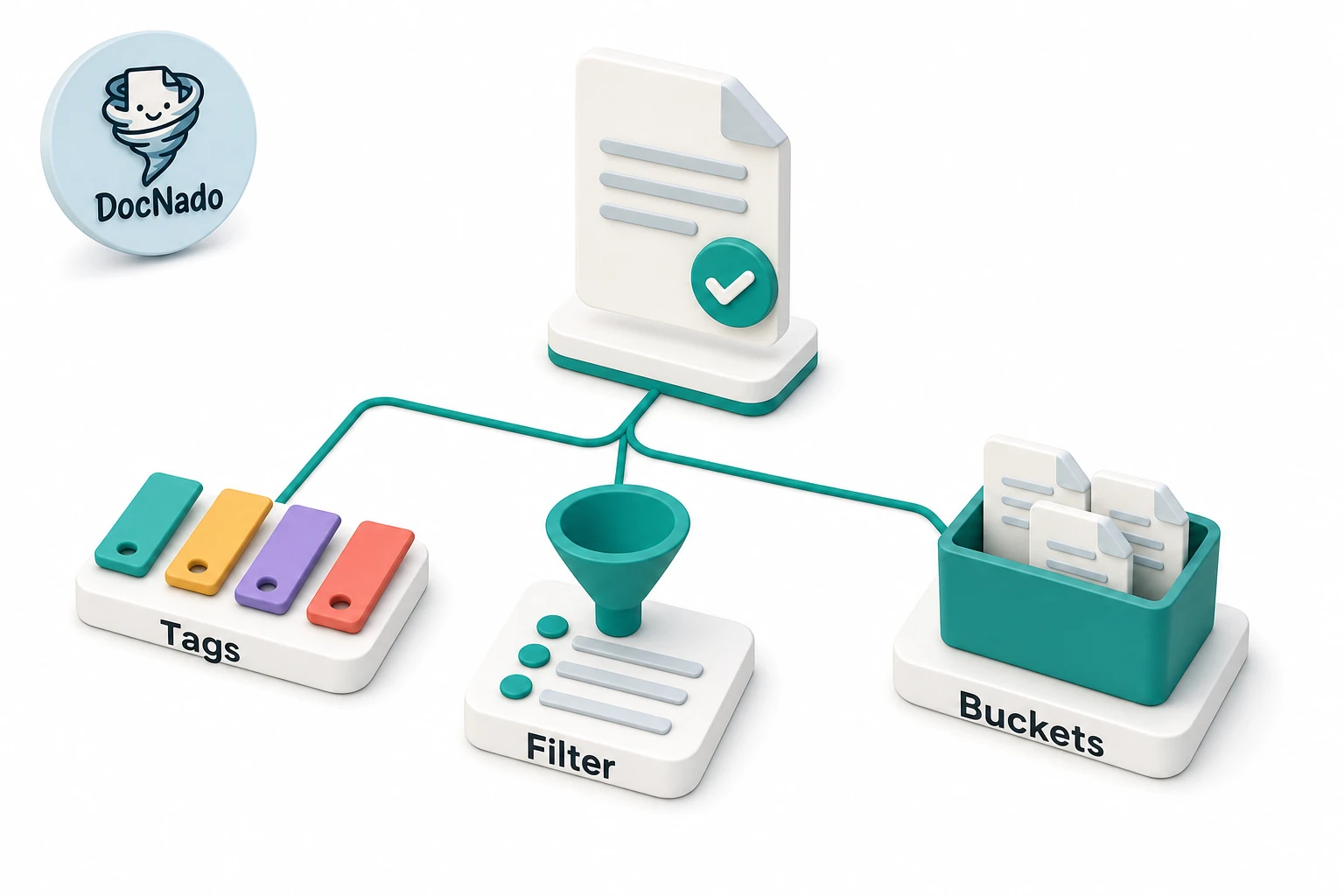
Almost everyone who organizes documents fights the same battle: the filing location is a decision you have to make over and over. This article shows why folders are the wrong tool for that decision — and how three layers working together (tags, filters, buckets) make the decision almost unnecessary.
Why folders rarely work for documents
Folders are a system inherited from paper: one file sits in exactly one hanging folder. That fits paper — but not digital documents, which usually belong to several topics at once.
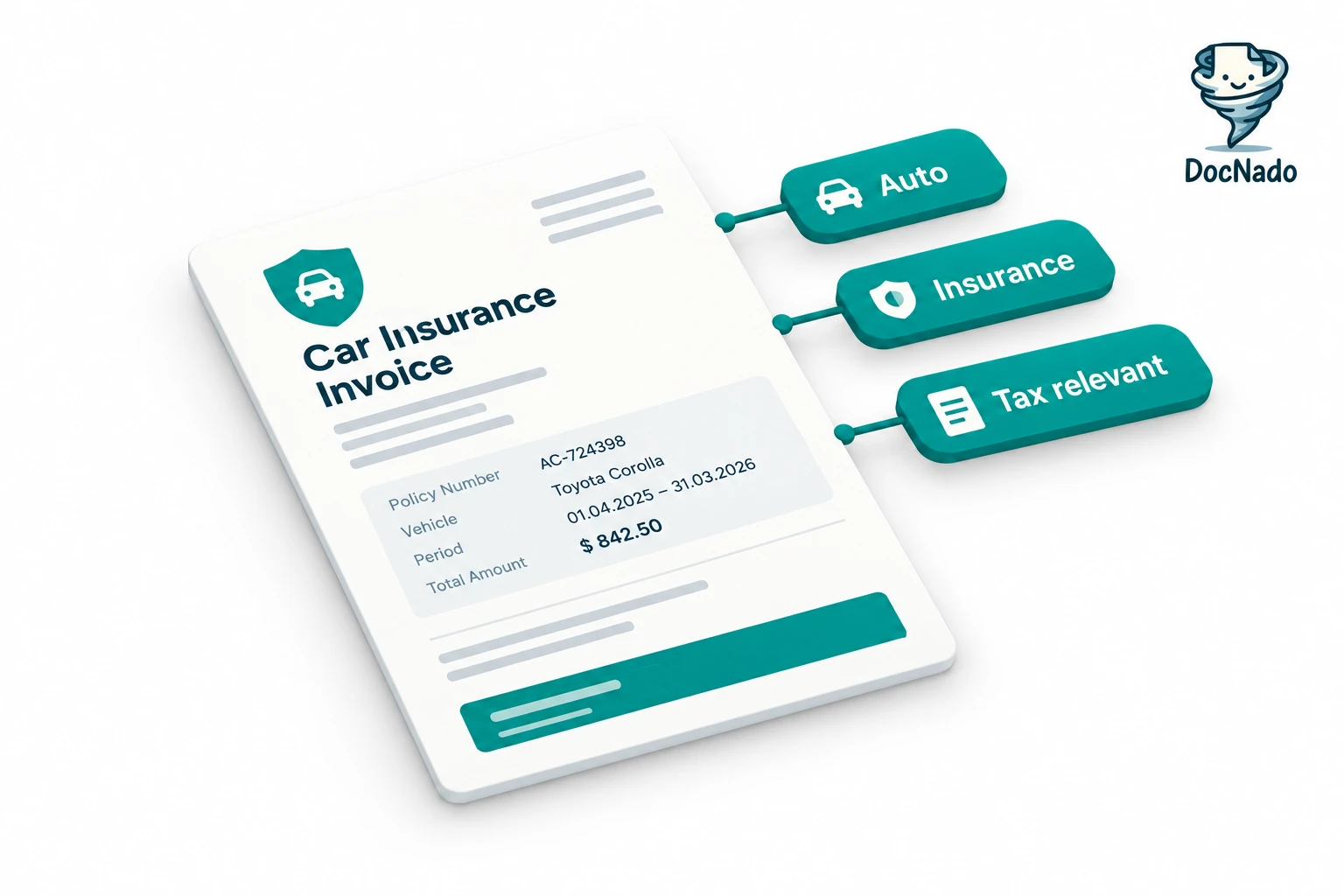
A real-life example: your car insurance invoice belongs to "Car", to the category "Insurance", and to the year "2026". In a folder system you must pick one of those places — and the other two access paths are gone. So people copy files, create aliases, or build a parallel structure of shortcuts. A year later, nobody remembers which copy is the valid one.
Interestingly, the market leader among scanner apps says the same: Docutain explains in its own blog that tags are the flexible counterparts to rigid folders — a document can carry several tags and thus appears in several contexts. We couldn't agree more. The interesting question is the next one: what do you build from those building blocks?
Layer 1: Tags — the building blocks
Tags are the attribute currency of document management. A document doesn't get one place, it gets several labels: "Car", "Insurance", "Tax-relevant". Later you filter by any of those labels — or by combinations.
So the start isn't empty, DocNado ships with a set of system tags (household, car, health, taxes and more) covering the typical document families of a private household. Custom tags join as soon as your household has its own categories — anyone running a small side rental business needs a "Rent" tag, period.
The practical test for good tags: they describe the document itself, not a storage place. "Insurance" is a tag. "Scans-2026-new" is a folder in disguise — stay away.
Layer 2: Filters, sorting and search — the quick glance
Tags alone don't answer the most urgent everyday question: what do I need to tackle next? That takes a second layer: status filters, sorting — and search for everything outside the standard path.
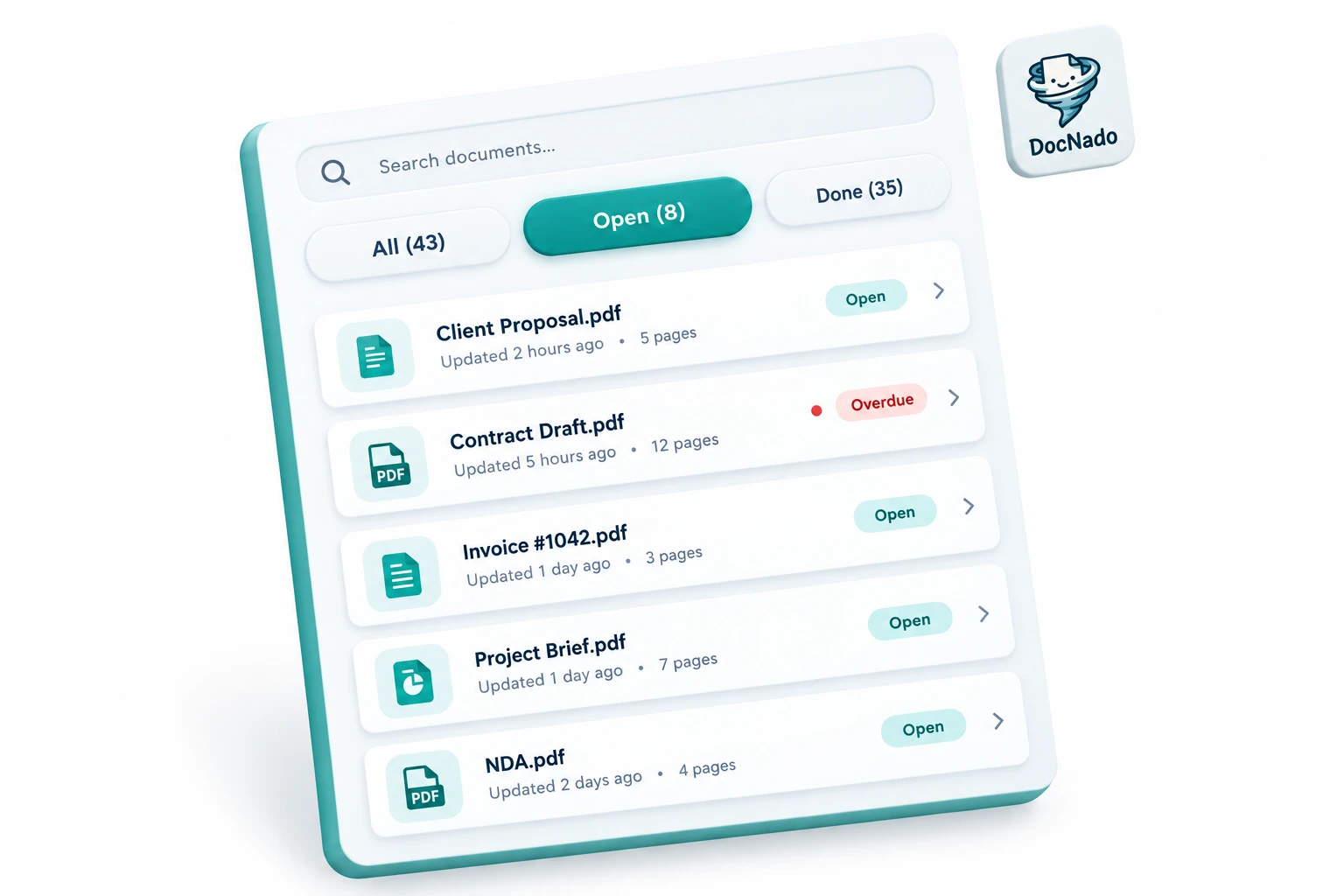
In DocNado, the status chips ("All", "Open", "Done") sit right above the list with live counts — you instantly see that 8 of your 43 documents are currently open. On top comes sorting by whatever matters right now: newest first, by due date (earliest first, documents without a date at the end), or by amount. Open documents past their due date are additionally flagged red as "Overdue" — the signal you'd otherwise miss among forty rows.
Chips and sorting answer the standard questions — search answers everything else. The search field above the list scans titles, vendor, location, amount and, thanks to text recognition, even the content of the document itself; encrypted documents join in via search hashes. And because search and tags belong together, there's a shortcut: type an @ in the search field and the tag picker opens — several tags can be combined this way.
This layer is deliberately fleeting: it's a glance, not a structure. A different glance every morning, depending on what's ahead.
And for the handful of documents you need all the time — insurance, ID card, the active contract — there are favorites: a star in the list or on the detail page marks them, and they then sit in the carousel at the very top of the dashboard. Not a filter, not a structure — just always within reach.
Layer 3: Buckets — saved views that keep themselves current
That's where the third layer comes in, turning quick glances into permanent tools. A bucket is a saved filter view: a combination of tags, status and optionally a due-date window that you define once and tap forever after.
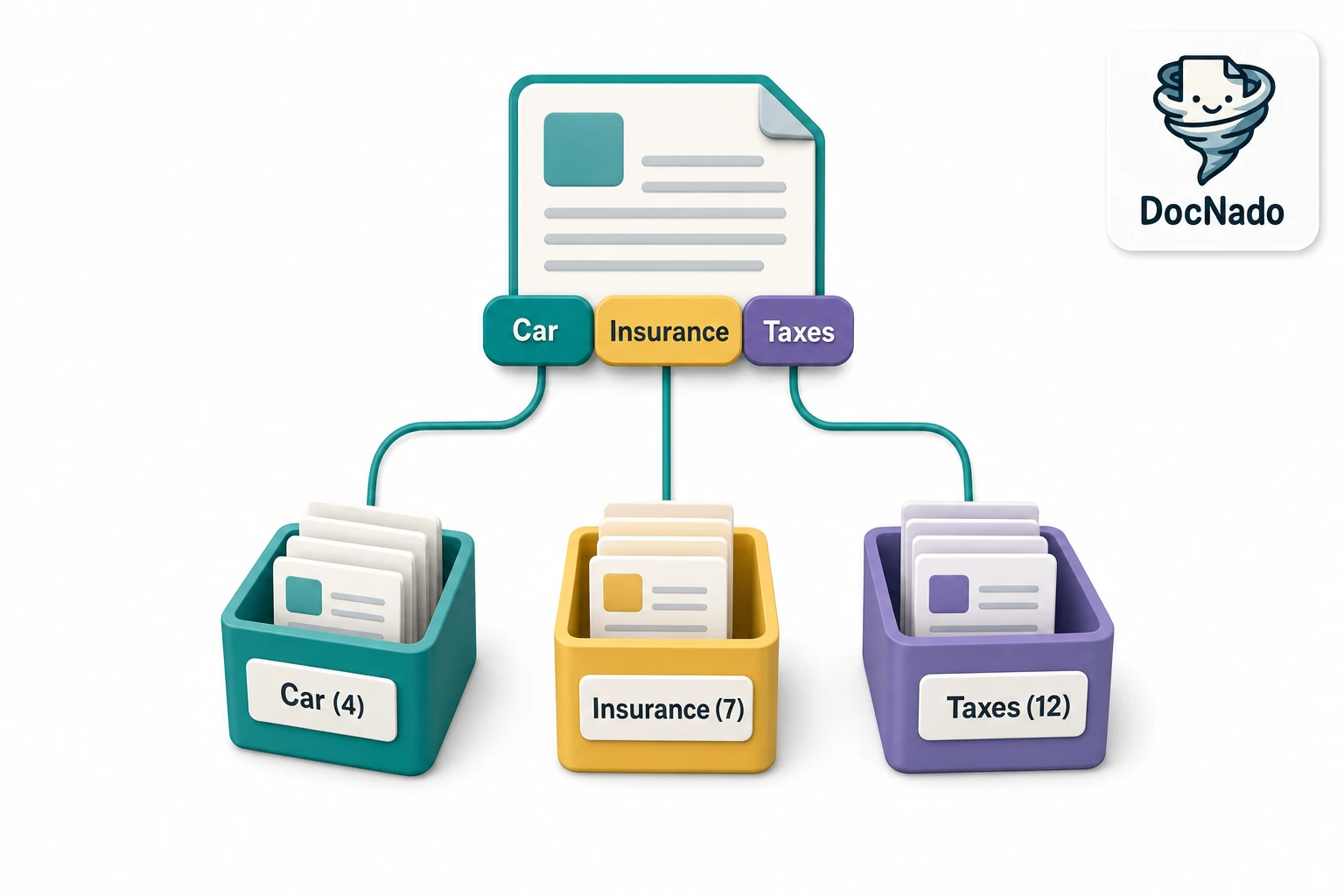
The crucial difference from folders: a bucket contains no documents, it contains a question. The car insurance invoice from above leaves the bucket "Insurance open" the moment you mark it "Done" — automatically, without moving it anywhere. Conversely, every newly scanned insurance invoice lands immediately in every bucket whose criteria it matches. You never maintain buckets; you maintain documents, and the buckets follow.
A bucket in daily life looks like this: above the document list sits a row of chips with live counts — "Insurance open (4)", "Due within 30 days (7)", "Taxes 2026 (23)". One tap filters the list, another chip ("All") resets it. Buckets are created and managed in their own manager: pick a name, select tags, set status and due-date window, done.
Five buckets that have proven themselves
If you don't want to start from zero, start with these five questions — they cover what actually gets lost in private households:
| Bucket | Criteria | Answers the question |
|---|---|---|
| Due soon | Status: Open · Due: 30 days | "What do I need to tackle this month?" — overdue documents are automatically included |
| Insurance open | Tag: Insurance · Status: Open | "Is there still an open matter with the insurer?" |
| Taxes 2026 | Tag: Tax-relevant · Status: Any | "What am I collecting for the return?" — simply work through it at year's end |
| Warranties to check | Tag: Warranty · Status: Open · Due: 90 days | "Which warranties might kick in soon?" |
| Home & utilities | Tag: Rent or Utilities | "Where is the latest utility-bill statement?" |
The last row shows why the tag layer comes first: a bucket can only be as good as the tags it queries. Five minutes of disciplined tagging at scan time pay off on every later bucket tap.
What does it cost?
Tags, status filters, sorting and search are part of the free tier. For buckets: on the free plan you create up to three buckets and use them fully — create, edit, delete. More than three at once comes with the Standard plan, unlimited there. If you tap your three buckets daily, you know exactly what you'd be buying.
Organization isn't a state, it's a question
That's the core idea of this article: classic filing asks "where does this go?" — and re-asks that question for every document. A well-built document manager instead asks the questions you actually have ("what's open?", "what's coming up?") and lets the documents be the answer. Tags make documents describable in multiple ways, filters and search make the moment fast, buckets make the recurring question permanent — and the interplay of all three layers keeps the filing system alive that would otherwise be abandoned within a month.
Want to try how this feels? DocNado runs right in your browser — no installation, with demo data to play around: docnado.app. To go deeper, our article on personal document management covers the basics and how long to keep receipts explains the retention periods in detail.