
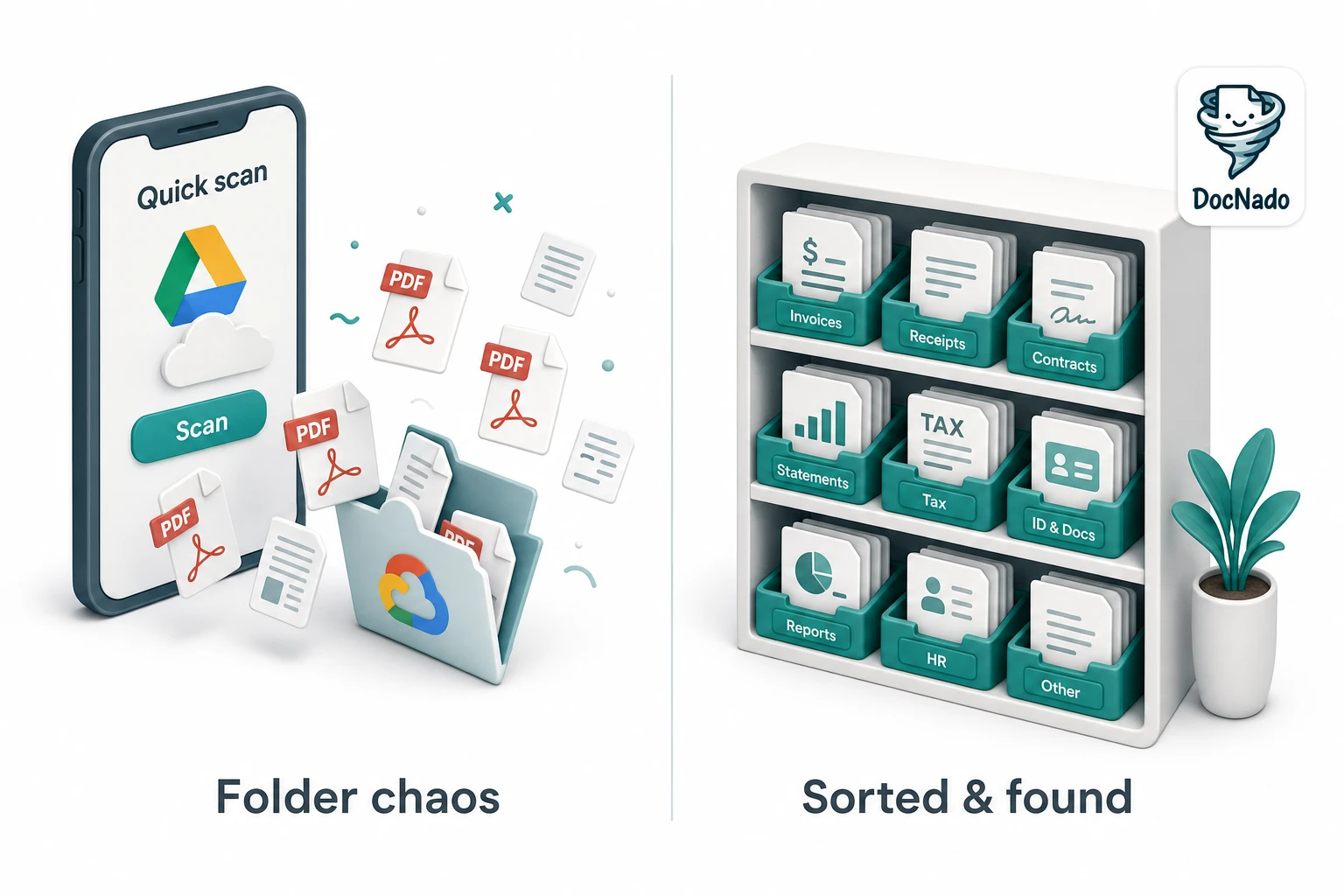
Many people scan receipts and invoices today with the tool that's already on their phone: the scan feature inside the Google Drive app. It's free, it works, and since the big 2026 update it's actually fast. Once you've seen Smart Batch Scanning capture several pages as you hover over them, it's fair to ask: do I even need a separate app?
The honest answer: for a quick single scan — no. For receipts you want to find again, keep for the legally required period, and file cleanly for taxes — yes. This article compares both paths without a marketing lens, so you can make the right call for your situation.
What the Google Drive Scanner Can Really Do in 2026
To keep the comparison fair, let's start with the praise — it's earned:
- Edge detection and auto-capture: Blue border detection, automatic shutter, cropping, and perspective correction are standard.
- Smart Batch Scanning: Scan several pages as you hover, without triggering each shot — almost like recording a video.
- Auto Best Frame and duplicate detection: Blurry frames are dropped automatically, pages scanned twice are recognized.
- On-device processing: The new model runs locally on your phone — fast and offline-capable (requires newer devices with at least 8 GB RAM).
- OCR: Text in the scan becomes searchable; the receipt lands as a PDF in the Drive folder of your choice.
- Price: $0, with 15 GB of free storage to start.
If you occasionally digitize a contract or a form, you're well served. The problem doesn't start with scanning — it starts afterwards.
Where the Drive Scanner Falls Short for Receipts
1. A folder is not a structure
Drive saves your scan as a PDF into a folder. Done. But household receipts aren't files you file alphabetically: it's the grocery receipt from March 14, the contractor invoice with statutory warranty until 2031, the meter reading, the medical record. What you need isn't a folder — it's a system that knows what the document is.
2. No retention periods, no reminders
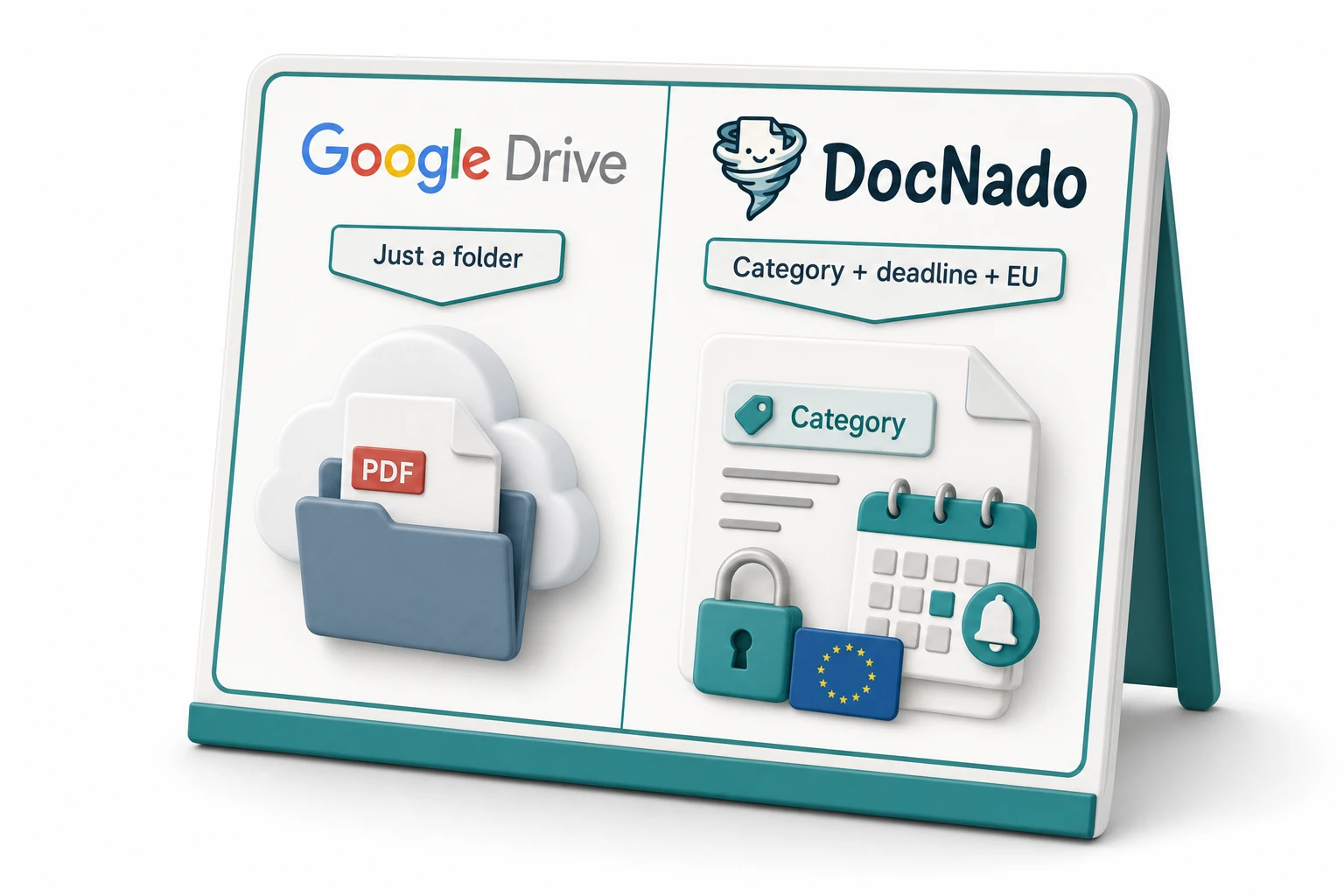
Google knows a lot — but not that your invoice from November 3 must be kept for up to 10 years under document retention rules before it may be destroyed. And it won't remind you when a deadline has passed. The paper pile goes digital, but the remembering stays your job.
3. US cloud instead of EU privacy
Scans in Google Drive land in US data centers — with all the questions the CLOUD Act raises for European users. If you digitize sensitive documents like medical records or tax papers, you should decide consciously where that data lives. DocNado stores everything end-to-end encrypted on servers in Frankfurt, Germany — details in our article on EU servers and privacy.
4. Without categories, there's no finding things again
Finding a PDF in "My Drive" works with 20 files. With 400 receipts a year, searching through filename chaos becomes detective work. DocNado recognizes category, merchant, amount, and date automatically while you scan — you scan, the rest happens in the background. For clean scan setups, see our article on scanning receipts the right way.
5. No metadata, no overview
Want an overview of the tax year? In Drive: create folders, hope you named everything correctly, sort manually. DocNado shows you at a glance which receipts belong to which category, which retention periods are running, and what's still missing.
The Honest Comparison
| Google Drive Scanner | DocNado | |
|---|---|---|
| Scan quality | Very good (2026 update) | Very good |
| Batch scanning | Smart Batch | Auto-scan series |
| Searchable text (OCR) | Yes | Yes, AI OCR |
| Receipt recognition (category, merchant, amount) | No | Automatic |
| Retention periods and reminders | No | Yes |
| Storage location | US cloud (CLOUD Act) | EU (Frankfurt), end-to-end encrypted |
| Structure | Folders | Categories, tags, search |
| Device requirement | 8 GB RAM or more (new model) | Browser (PWA, no download) |
| Price | $0 | Free tier with 10 scans/month, plans from €12/year |
Which One for Whom?
The Drive scanner is enough if you …
- occasionally digitize a document (contract, form, ID),
- drop it in a folder and leave it at that,
- don't mind US storage.
DocNado is worth it if you …
- deal with receipts and invoices every week,
- don't want to search backwards at tax time,
- want retention periods and reminders to work for you,
- want your documents stored in the EU and encrypted.
Conclusion
The Google Drive scanner is a fine tool for single scans — and it would be dishonest to pretend otherwise. But scanning is the smallest part of the job. Managing receipts means finding them again, keeping them for the required period, and assigning them cleanly for taxes. That's exactly where Google's workflow ends — and exactly where DocNado begins.
If you want to see the difference live: try the DocNado demo on the homepage — one click on "Try a sample receipt" is enough, no own document needed.